Do Meeting Room Displays Store Calendar Data? Privacy Guide
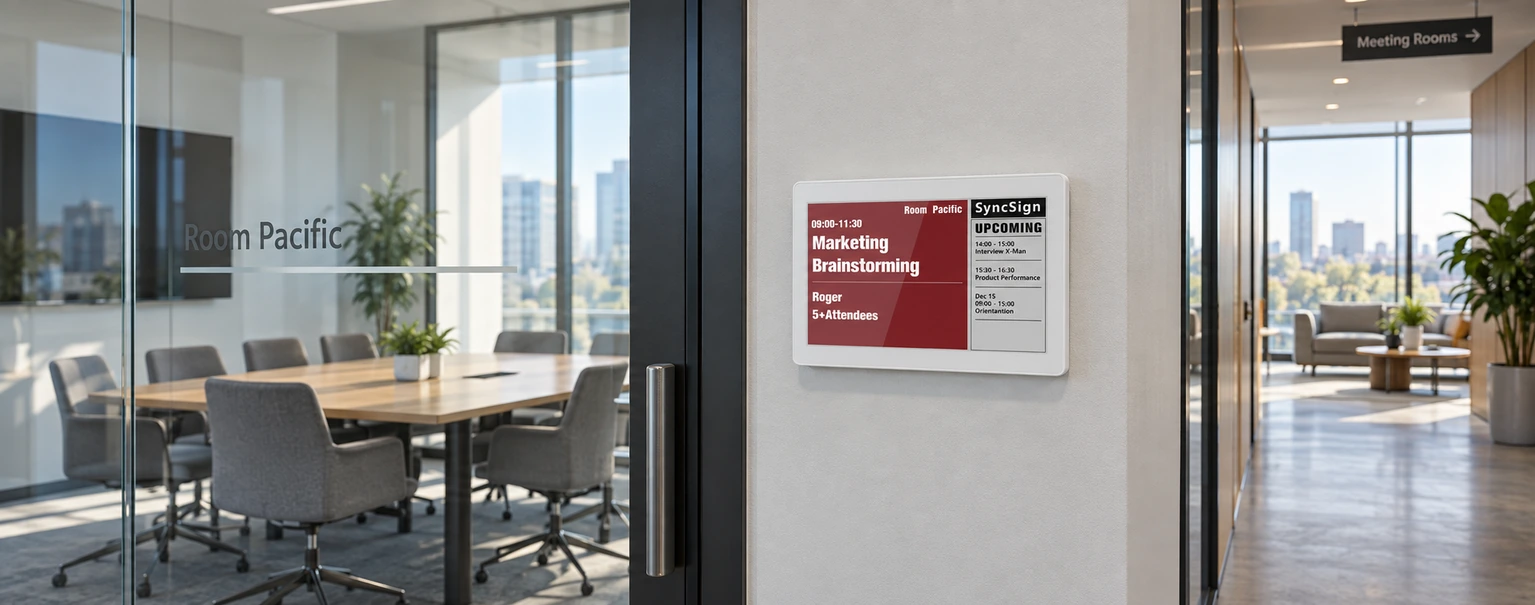
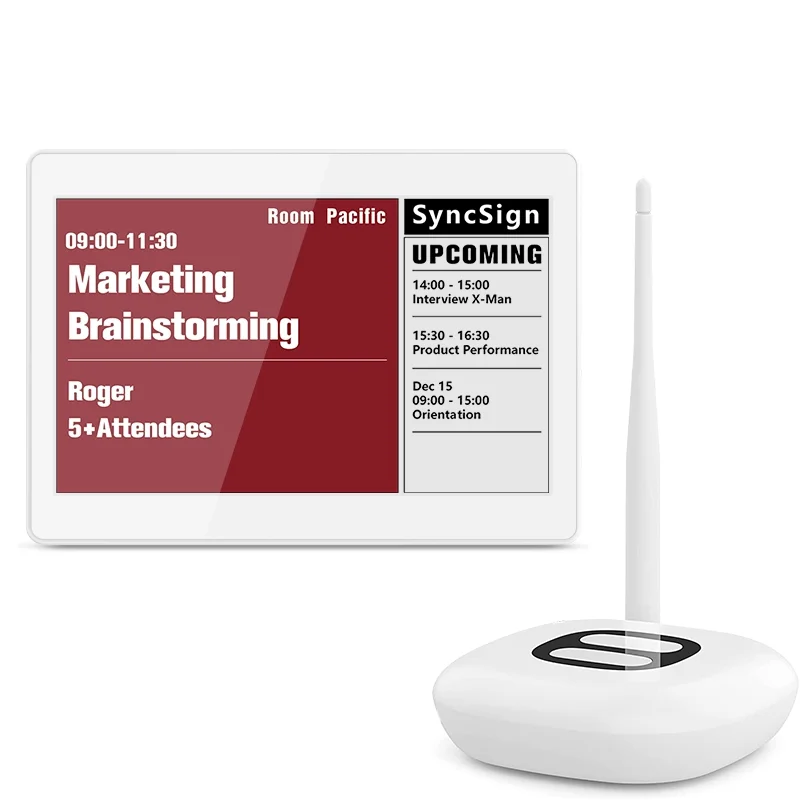
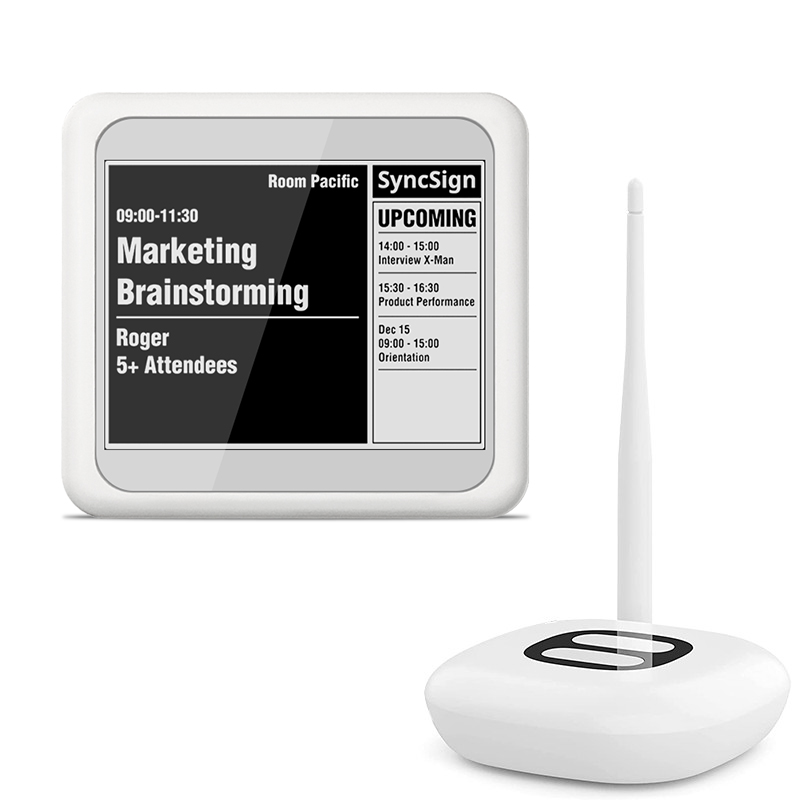
A meeting room display may show a meeting title, organizer, time, location, or attendee information outside the room. That makes a simple purchasing question surprisingly important: where does the calendar data go, how long does it remain there, and who can see it?
The answer depends on the product architecture, deployment model, calendar permissions, and display template. Buyers should review the complete data path rather than treating the screen as an isolated device.
Start with the calendar data path
A connected room display usually sits at the end of a chain:
- An employee books a room in Google Workspace, Microsoft 365, Exchange, or another calendar system.
- The room display service retrieves authorized calendar information.
- A server processes the event data and prepares the screen layout.
- A hub or gateway sends the rendered content to the display.
- The display shows the selected fields outside the room.
This distinction matters because “the display stores calendar data” and “the service processes calendar data” are different questions. Security teams should assess the calendar account, server, network connection, hub, and screen content separately.
SyncSign uses the customer’s existing booking system rather than creating a second calendar. Its supported data sources include Google Calendar and Google Workspace, Microsoft 365, Exchange Server, Nextcloud, and custom CSV sources, depending on the deployment model.
How SyncSign processes data in the cloud
With SyncSign SaaS Cloud, the cloud service receives event data through the calendar provider’s authorized API and processes it to generate a device-ready layout. The exact information in that layout depends on the selected template. It may include the meeting subject, organizer, time, location, or attendee information.
SyncSign does not maintain a separate database or long-term archive of the source calendar and event records. The rendered display layout may be cached for up to seven days so the latest schedule can continue to appear during a temporary calendar-service interruption. According to SyncSign’s infrastructure documentation, the cached information is used only to provide the display service, not for analytics or an unrelated purpose.
For buyers, this creates four separate questions:
- Which calendar fields can the integration read?
- Which fields does the selected template render?
- How long can the rendered layout remain cached?
- In which region does the cloud service process the data?
SyncSign states that its cloud application servers are located in the United States. Organizations with data-residency rules should include that fact in their security review.
What changes with an on-premise deployment
SyncSign On-Premise Server, or SOPS, retrieves, processes, and renders calendar event data inside the customer’s network. Event details are not sent to SyncSign SaaS Cloud. Only an “Event Updated” notification passes through the cloud service to tell the SyncSign Hub that refreshed content is available.
This model can suit organizations that need to keep event details within their own network. It also moves more operational responsibility to the customer, including server maintenance, network controls, backups, certificates, and integration configuration.
An on-premise deployment is not automatically disconnected from the public internet. When SOPS uses real-time synchronization with Google Workspace or Microsoft 365, the calendar provider must be able to deliver webhook or push notifications to a controlled public HTTPS endpoint. Security teams can restrict access, expose only the webhook path, and place the endpoint behind a reverse proxy or WAF, but the inbound requirement should be reviewed during network design.
For environments using an on-premise Exchange Server, SyncSign documentation specifies SOPS rather than the SyncSign SaaS Cloud connector.
Does the e-paper display retain meeting details
The SyncSign Hub receives rendered content from the selected server and delivers it to the display. Under normal operation, the display receives rendering instructions containing text, images, and shapes. SyncSign’s infrastructure documentation states that the display does not store the rendering content.
E-paper introduces a separate physical consideration: the screen can continue showing its last image without continuous power. Even if the device is not maintaining a calendar database, the last rendered meeting information may remain visible until the next refresh. A privacy review should therefore consider what appears on the screen, not only what is stored in software.
For rooms used by HR, legal, healthcare, finance, or executive teams, a privacy-focused template can show availability and time without exposing a sensitive meeting title, organizer, or attendee list.
Read-only and read-write permissions serve different purposes
A display that only shows room status needs permission to read the relevant calendar information. Features that book a room, end a meeting early, extend a meeting, or otherwise change an event require write access.
Granting broader permissions than the deployed features need increases exposure without improving the display experience. A read-only deployment should not receive write access simply because interactive controls may be added later.
For Google Workspace, SyncSign supports two common approaches: connecting an account with broad administrative access or sharing selected resource calendars with a dedicated booking account. The second approach can limit the integration to the rooms it needs. Google Calendar also provides different sharing levels, ranging from free/busy visibility to event details and event editing.
Security teams should document the exact account, calendars, scopes, and permissions used by the integration. They should also define who can revoke access when a display is removed or the deployment changes.
A privacy checklist for buyers and IT teams
Data access
- Identify the calendar provider and room-resource accounts involved.
- List the fields the service can read, such as title, organizer, attendees, description, location, and start or end time.
- Separate read-only display requirements from booking or event-editing features.
- Confirm whether access can be limited to selected room calendars.
Data processing and retention
- Ask whether source calendar records are copied into a separate database.
- Confirm whether rendered layouts or API responses are cached and for how long.
- Record the cloud processing region and any applicable residency requirements.
- Verify what happens to cached information when an account, room, or device is removed.
Screen privacy
- Decide whether meeting titles and organizer names should be visible in public corridors.
- Use free/busy-only or time-only templates for sensitive rooms.
- Test private and confidential events before rollout.
- Check what remains visible if the network, calendar service, Hub, or display stops updating.
Network and device security
- Review encryption between the display, Hub, server, and calendar provider.
- Place Hubs and on-premise servers on suitable network segments.
- For SOPS with cloud calendars, limit the public webhook endpoint to the required HTTPS path and traffic.
- Define a process for firmware updates, credential rotation, device replacement, and decommissioning.
Administration
- Use a dedicated integration or booking account where practical.
- Apply the least privilege needed for the enabled features.
- Keep an inventory linking each display to its room calendar, Hub, owner, and location.
- Review access after office moves, room renaming, employee departures, and calendar migrations.
Questions to ask during procurement
Ask vendors for clear answers to these six questions:
- Data access: Which calendar fields can the system read?
- Storage: What is stored or cached, and for how long?
- Permissions: Which permissions are needed for display-only and booking features?
- Location: Where is cloud data processed?
- Resilience: What remains visible when synchronization fails?
- Deployment: Can event details stay on-premise, and does real-time sync require a public webhook?
Choose the deployment and template together
Cloud versus on-premise is only one part of meeting room display privacy. A tightly controlled on-premise server can still expose confidential titles on a hallway screen. A cloud deployment with limited calendar access and a free/busy-only template may reveal less to passersby.
The strongest design combines limited permissions, an appropriate deployment model, a minimal screen template, controlled networking, and a documented offboarding process.
SyncSign supports SaaS Cloud and on-premise deployment options for different calendar environments and security requirements. Review the SyncSign infrastructure overview, calendar data source guidance, and data security information with your IT or security team. For deployment planning, contact SyncSign with your calendar platform, room count, required display features, and data-residency constraints.
Choose the SyncSign package that fits your rollout
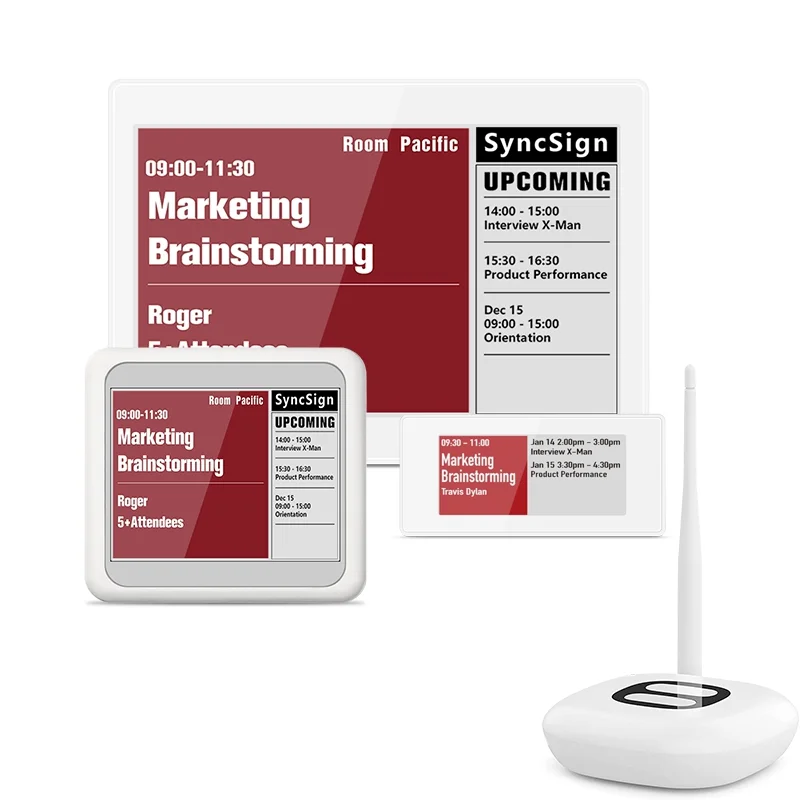
Start with the display sizes your meeting rooms need and scale without adding unnecessary workplace software.