Microsoft 365 Room Displays Without Extra Software Subscription Fees
Your organization may already use Microsoft 365 and Outlook to manage meeting rooms. Employees can view availability, invite a room resource, and update a booking from the calendar tools they use every day.
What may still be missing is a clear schedule at the room entrance. For teams searching for a Microsoft 365 room display with no subscription, the goal is usually simple: keep the existing Outlook workflow while making room availability visible at the door.
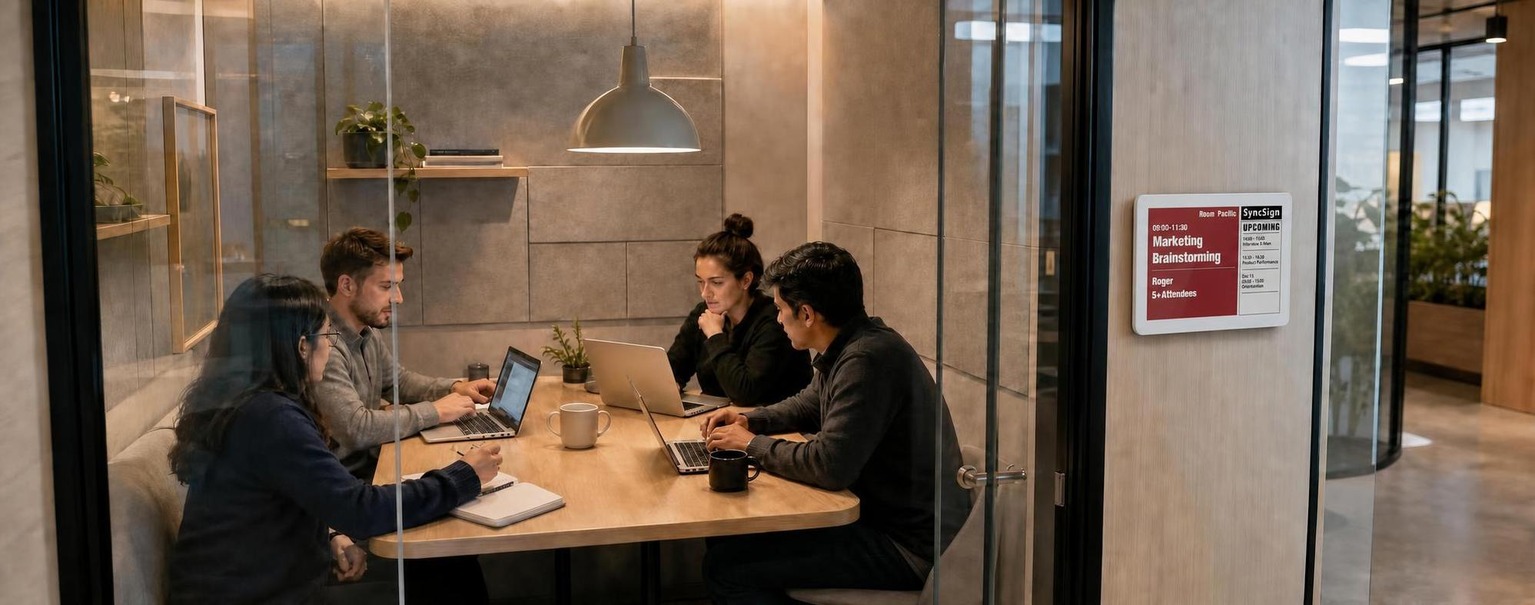
A meeting room display solves that physical visibility problem. It shows whether a room is available and what is scheduled next, helping employees confirm that they are at the right room before opening Outlook or entering a meeting.
But adding a display should not automatically mean adding another broad workplace software subscription. Buyers often search “Microsoft 365 room display no subscription” when they want to preserve an existing room-booking process without adding another recurring platform fee. If your team already has a working Microsoft 365 workflow, a focused display solution may be enough.
Why add a Microsoft 365 room display with no subscription?
Microsoft 365 can remain the system your team uses to organize meetings. A room display adds an at-a-glance view outside the room.
That can help employees:
- check current room availability before entering;
- confirm the meeting title and scheduled time;
- see when the room becomes available again;
- find the correct room without opening another app; and
- rely on the same calendar information used in Outlook.
The display does not have to replace the calendar workflow. Its purpose is to make room-calendar information visible where people need it: at the meeting room door.
This distinction matters when evaluating products. Some organizations need a full workplace platform with desk booking, visitor management, analytics, or other office-management features. Others only need a reliable conference room scheduling display for Office 365. In that case, a focused display can solve the visibility problem without replacing the tools employees already use.
Do you need another workplace software subscription?
Not every Microsoft 365 room display has the same commercial model. Some solutions package room displays with a broader software platform and charge recurring fees. Others focus on the display itself and do not require an ongoing software subscription for the core room-display use case.
Neither model is automatically right for every organization.
A broader subscription platform may make sense if your team actively needs several connected workplace functions. An Outlook room display with no monthly fee may be a better fit if:
- meeting rooms are already configured in Microsoft 365 or Outlook;
- employees already know how to book rooms through their existing calendars;
- the main requirement is a schedule display outside each room;
- you do not need to deploy a new workplace app across the organization; or
- you want to limit recurring per-room software costs.
The practical question is not simply, “Which solution has more features?” It is, “Which features will our organization actually use?”
How recurring display fees affect long-term cost
A monthly software charge may look small when you evaluate one display. The total changes as you add rooms and extend the time horizon.
For a simple estimate, use:
Recurring software cost = monthly fee per display × number of displays × number of months
For example, an organization with 20 meeting rooms would calculate the additional software cost across one, three, or five years before comparing it with a no-mandatory-subscription option.
This is only one part of total cost of ownership. A complete comparison should also consider:
- display hardware;
- installation and mounting;
- network and power requirements;
- setup and administration time;
- support and warranty coverage;
- replacement planning; and
- optional services or features.
The goal is not to assume that every subscription is unnecessary. It is to identify whether a recurring fee pays for capabilities your team needs—or duplicates functions already handled by Microsoft 365.
For a broader framework, read The Real Cost of Meeting Room Display Subscription Fees.
What to check before choosing an Outlook room display
Search terms such as Office 365 calendar conference room display and conference room display for Outlook calendar can describe similar products, but compatibility and commercial terms vary. Check the following points before choosing a system.
1. Calendar compatibility
Confirm that the display solution supports your Microsoft 365 or Outlook calendar environment and the way your organization manages room resources.
Ask the vendor what setup method is required, which permissions are needed, and how room calendars are connected. Your Microsoft 365 administrator should review the proposed access before deployment.
2. Core information shown at the door
Decide what employees actually need to see. In many workplaces, the essentials are:
- room name;
- current availability;
- current meeting details;
- next scheduled meeting; and
- the time until the room is available.
A clear interface is often more useful than a long feature list.
3. Subscription terms
Ask whether the core room-display function requires a monthly or annual software plan. Clarify whether pricing is per display, per room, per location, or per user.
Also confirm which features are included, which are optional, and what happens if a subscription ends. This makes different pricing models easier to compare accurately.
4. Installation requirements
Room-display projects can become expensive when every device needs new cabling or frequent charging. Review the mounting location, network coverage, power source, battery expectations, and maintenance process before choosing hardware.
5. Deployment at scale
A solution that works for one room should also be manageable across ten, twenty, or more rooms. Ask how displays are added, assigned to room calendars, updated, monitored, and replaced.
6. The features your team will actually use
Separate essential requirements from optional features. If your organization only needs an Outlook calendar meeting room display or a meeting room scheduling display for Office 365, a broader workplace suite may add cost and administration without improving the booking workflow.
If you also need desk booking, visitor management, workplace analytics, or other functions, evaluate those requirements explicitly rather than treating them as automatically necessary for room signage.
A focused approach: keep Outlook, add the room display
For many organizations, the simplest architecture is straightforward:
- Employees continue booking rooms in Microsoft 365 or Outlook.
- Existing room-resource calendars remain the scheduling source.
- A display outside each room presents the relevant schedule and availability.
- The organization avoids introducing an additional booking workflow solely for room signage.
This approach reduces process change. Employees do not need to learn a separate system just to check or reserve a room through their normal calendar workflow.
SyncSign is designed as a focused meeting room schedule display. It connects room signage with existing calendar workflows and does not require a mandatory recurring software subscription for core room-display needs. For organizations comparing a Microsoft 365 room display with no subscription, this keeps the value proposition focused on room visibility, calendar continuity, and predictable long-term cost.
Learn more about SyncSign calendar integration and how SyncSign works.
Who is this approach best for?
A Microsoft 365 room display without an extra recurring software fee may be a strong fit for:
- small and midsize offices that already use Outlook room calendars;
- schools, clinics, churches, and nonprofit organizations with controlled IT budgets;
- manufacturers and distributed teams deploying displays across many rooms;
- organizations that want dedicated room signage rather than a broad workplace platform; and
- IT teams that prefer to retain an established Microsoft 365 booking workflow.
The same principle can also apply when an organization already uses another supported calendar system: keep the calendar workflow that works, then add a focused display at the room.
Final checklist
Before selecting a room display, confirm:
- Does it work with our Microsoft 365 and Outlook room-resource setup?
- What permissions and administrator steps are required?
- Can employees continue using their current booking workflow?
- Is a recurring software subscription mandatory for core display functions?
- Are fees charged per room, device, user, or location?
- What will the one-, three-, and five-year total cost be?
- Which included features will our team actually use?
- How will the displays be installed, managed, and supported?
A room display should make your existing scheduling process easier to see—not force your organization to buy a larger software platform than it needs.
CTA
Add room visibility without adding another mandatory software subscription
Already using Microsoft 365 or Outlook to book meeting rooms? Explore the SyncSign meeting room display or contact SyncSign to discuss your room-calendar setup, deployment size, and requirements. We can help you evaluate calendar compatibility, rollout requirements, and long-term cost before you choose a room booking display.
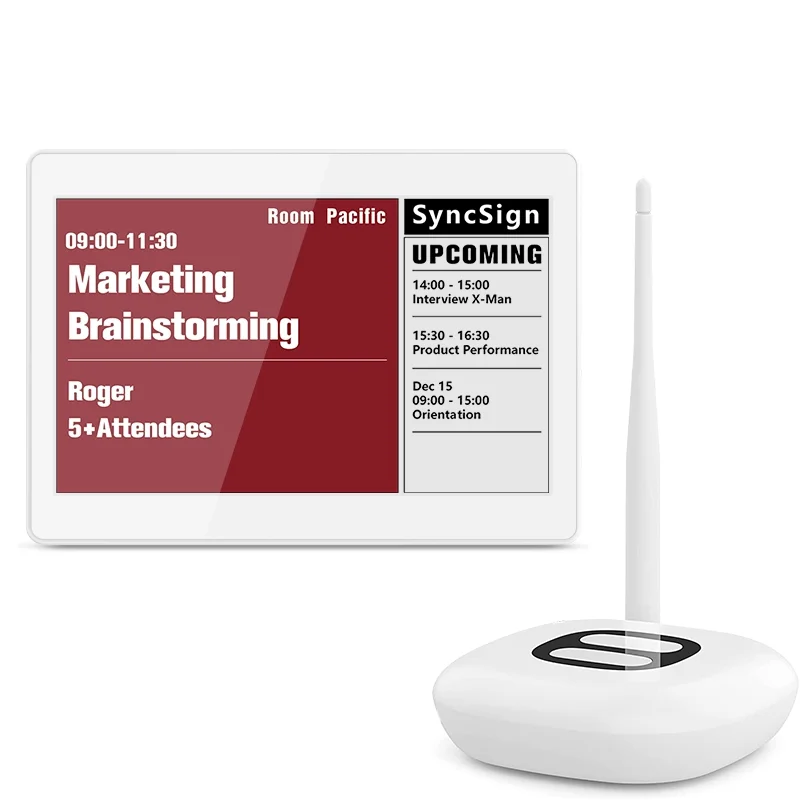
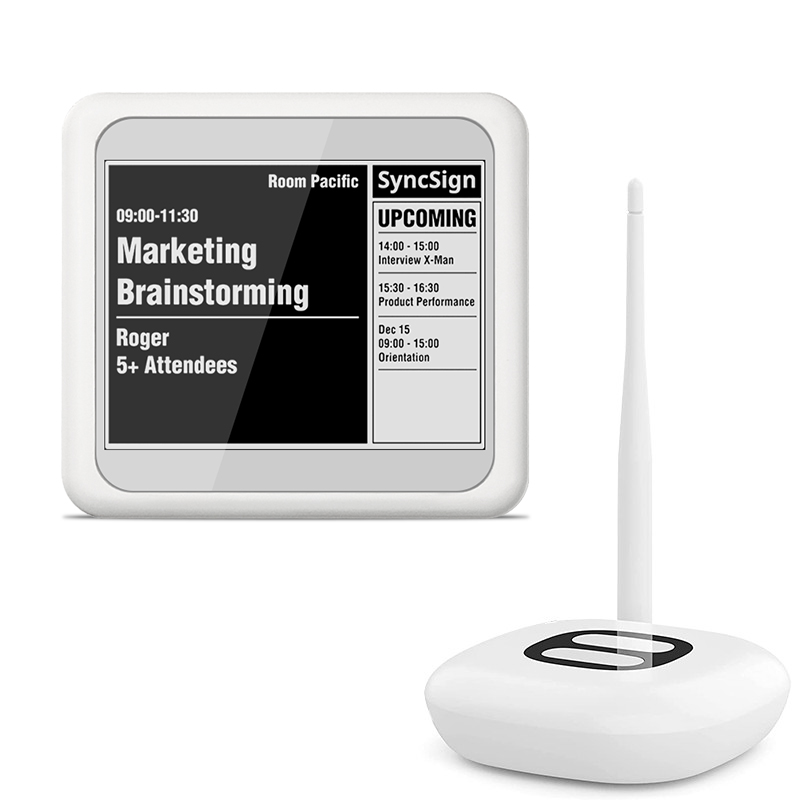
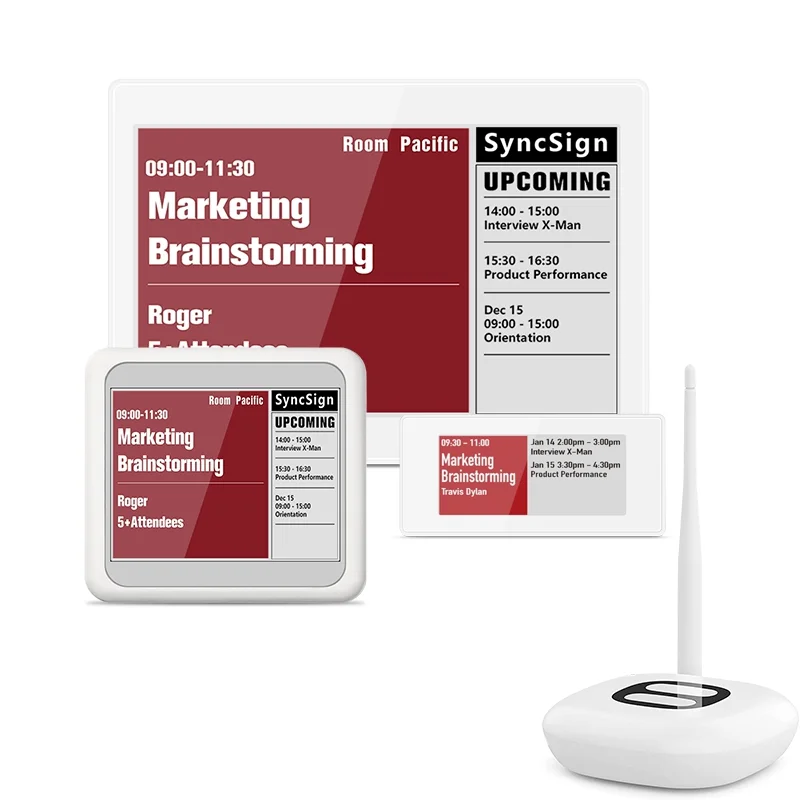
Choose the SyncSign package that fits your rollout
Start with the display sizes your meeting rooms need and scale without adding unnecessary workplace software.